

- Mark as New
- Bookmark
- Subscribe
- Permalink
- Report Inappropriate Content
Sales & Customers
Hello there, @slarmond.
Yes, there is an option to customize your invoices to display GST at the end of each line item instead of summarizing it at the end of the invoice. QuickBooks Online (QBO) offers the flexibility to modify how the GST column appears on your invoices by creating a custom form style template.
Here's how to set it up:
- Navigate to the Gear Icon in the top right corner and select Custom Form Styles.
- Click New Style drop-down button , then select Invoice from the options.
- Enter a descriptive name for your template to help you identify it later.
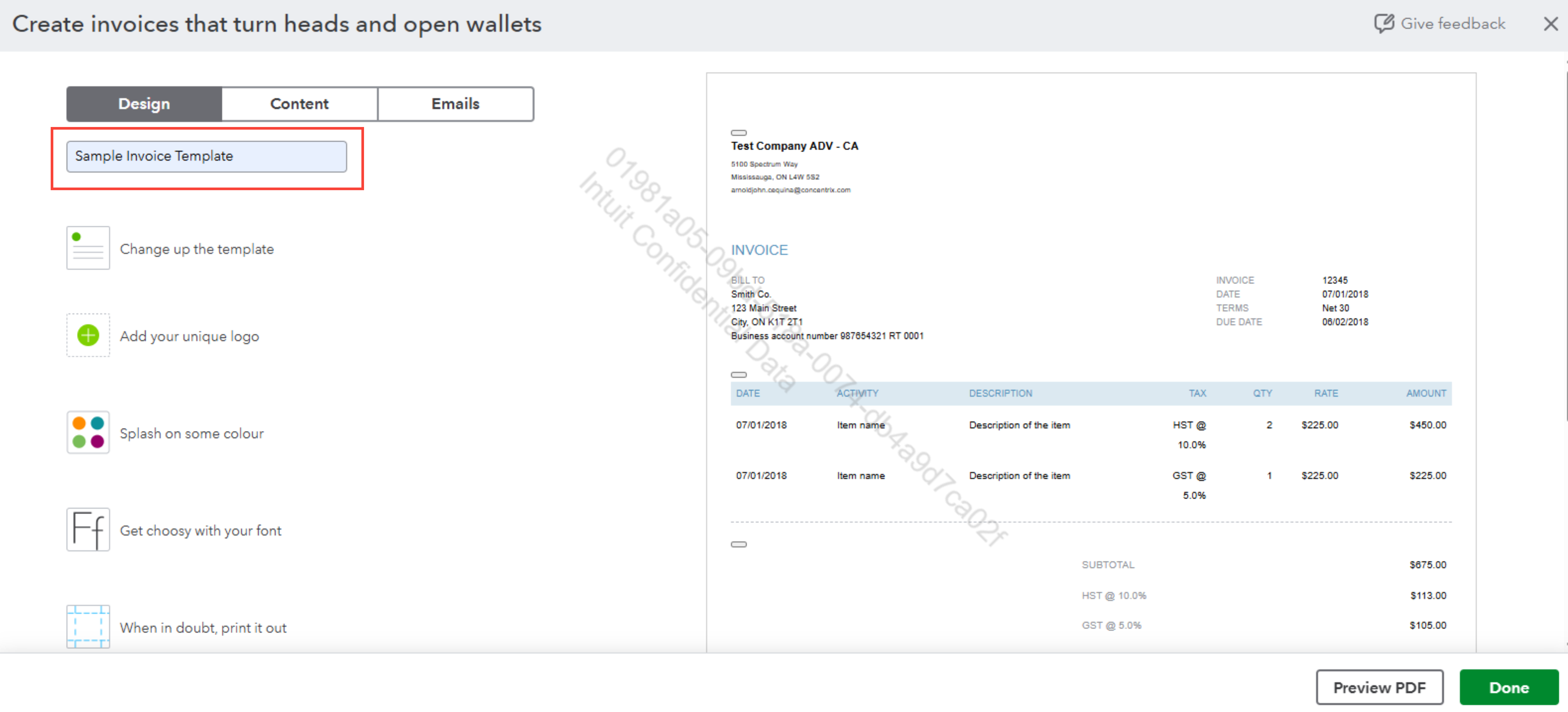
- Proceed to the Content section and click the Edit Icon for the Line Item section.
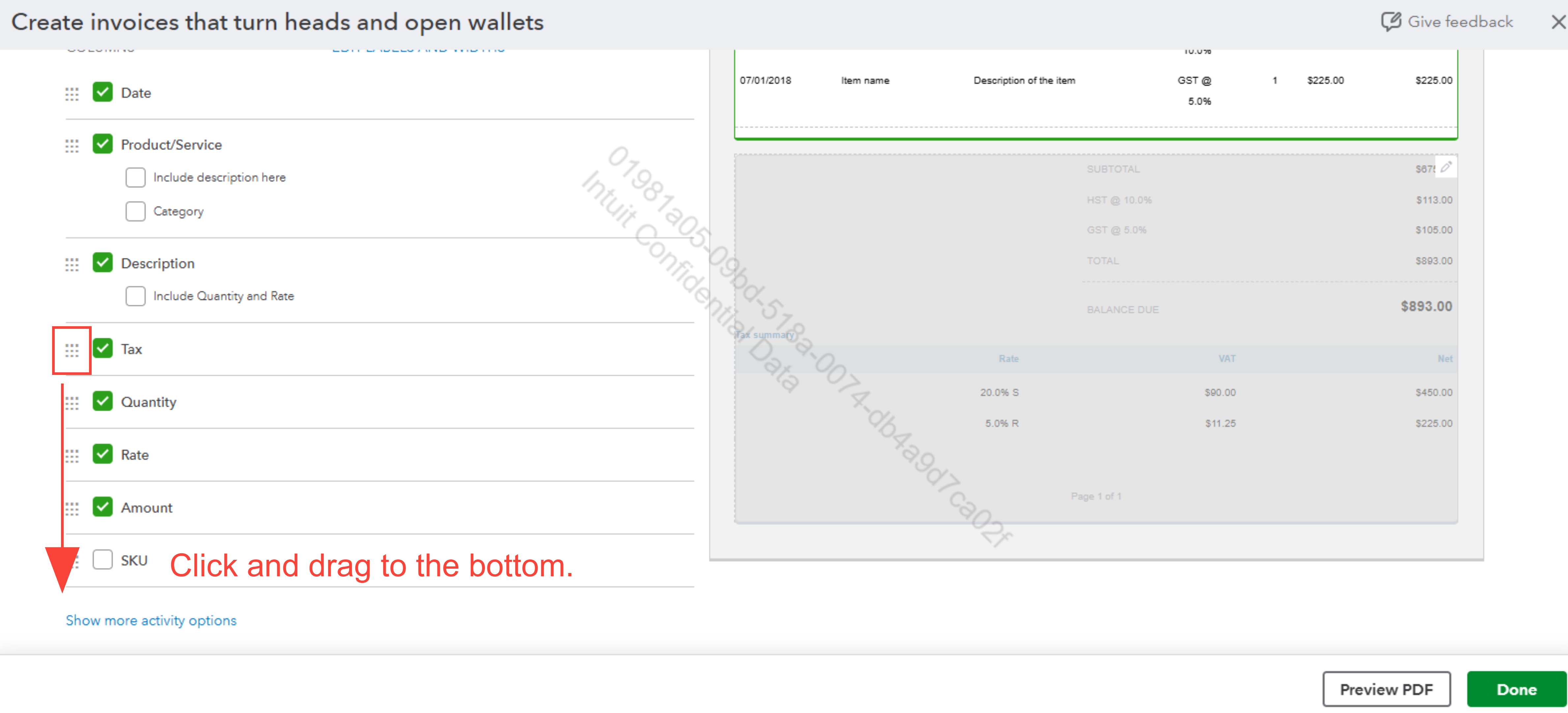
- Reposition the Tax Column by clicking and dragging it with the 9 dots, placing it at the end of the columns.
You can hide the Tax Summary at the bottom of the invoice by following these steps below:
- In the same Content section editor, click the Edit Icon on the bottom portion of the invoice.
- Uncheck the Tax Summary box to remove it.
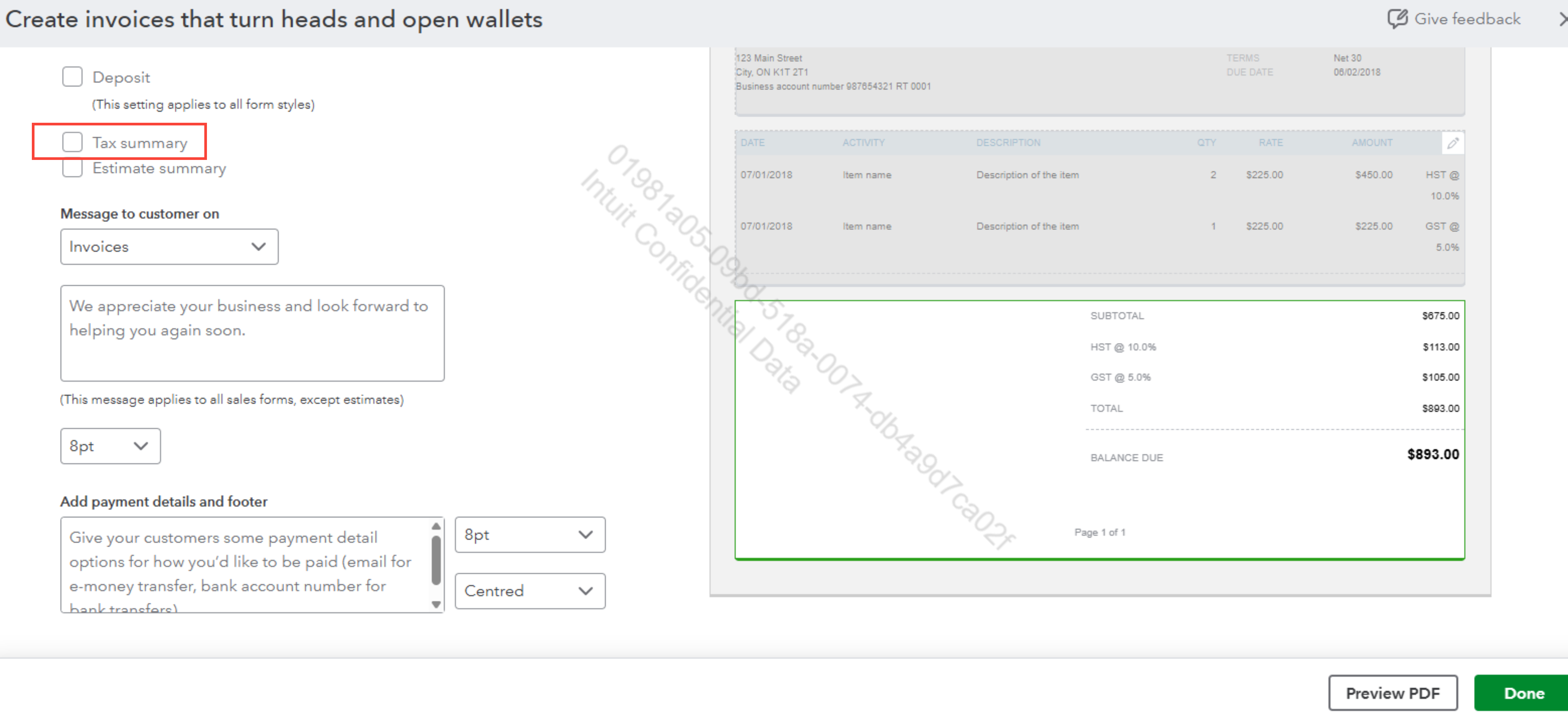
- Click Done to save your adjustments.
After completing these steps, GST will now appear alongside each line item rather than being presented at the bottom of the invoice.
To use the custom template for this specific invoice your customer requested, here are the steps:
- When creating an invoice, click Customize at the bottom of the page.
- Select your saved template from the menu to apply it to that specific invoice.
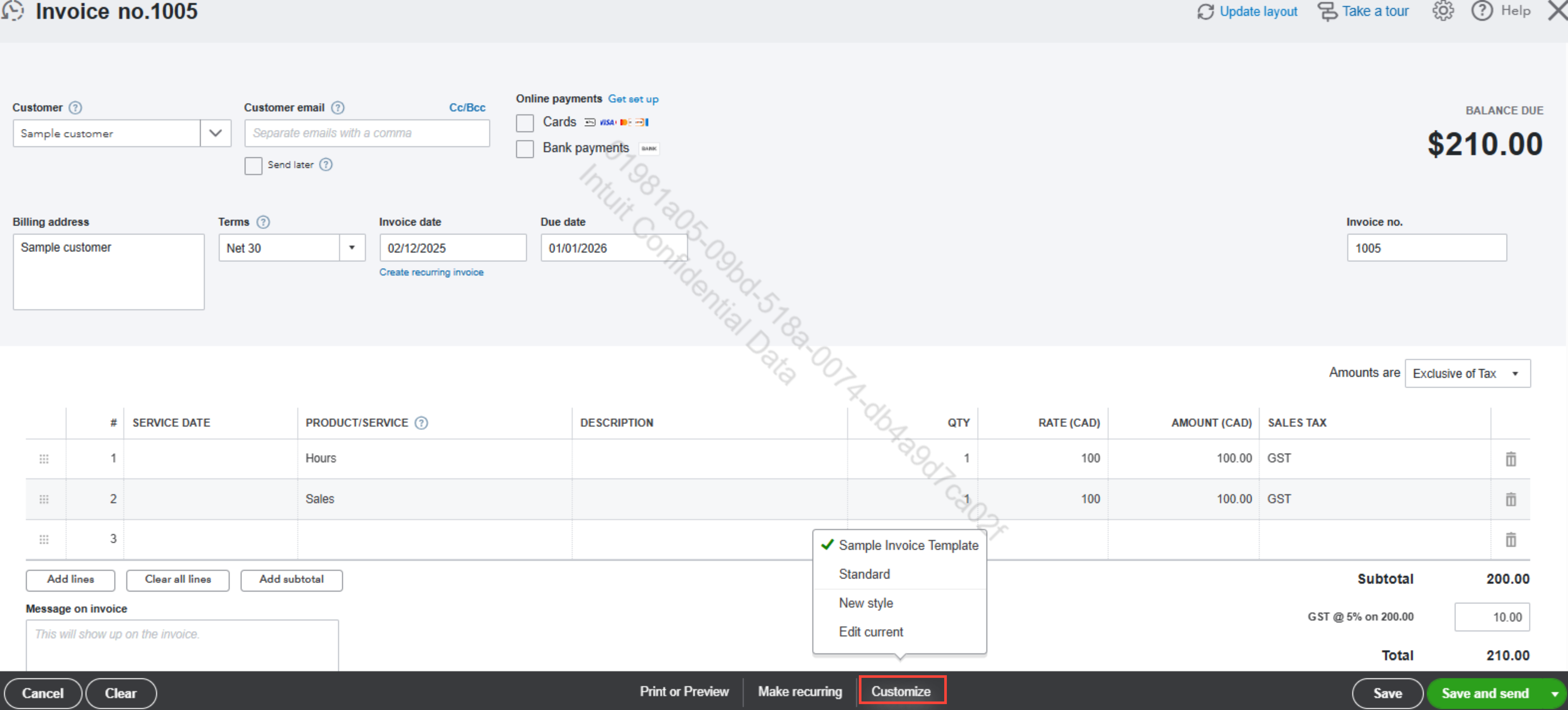
Once done, you’ll be able to meet your customer’s requirements with invoices tailored to their preferences.
Should you have further questions or need additional support, feel free to reach out anytime.
