

- Mark as New
- Bookmark
- Subscribe
- Permalink
- Report Inappropriate Content
Other Questions
Hi there, rdoboss63.
Welcome to the QuickBooks Community. Let me discuss how sending purchased orders in QuickBooks Online works and the email being used for them. Also, I'll ensure you'll be able to achieve your goal by performing some alternative steps below.
We provide services that enhance your QuickBooks Online experience. Each of our services has its own email address. These service-related email addresses need to be set as a "safe sender" or unblocked on your email account to make sure you receive important communications from these services. With this, the email address associated when sending your purchase order is the default email in QuickBooks Online. Please know that changing it to another email such as your company email is currently unavailable.
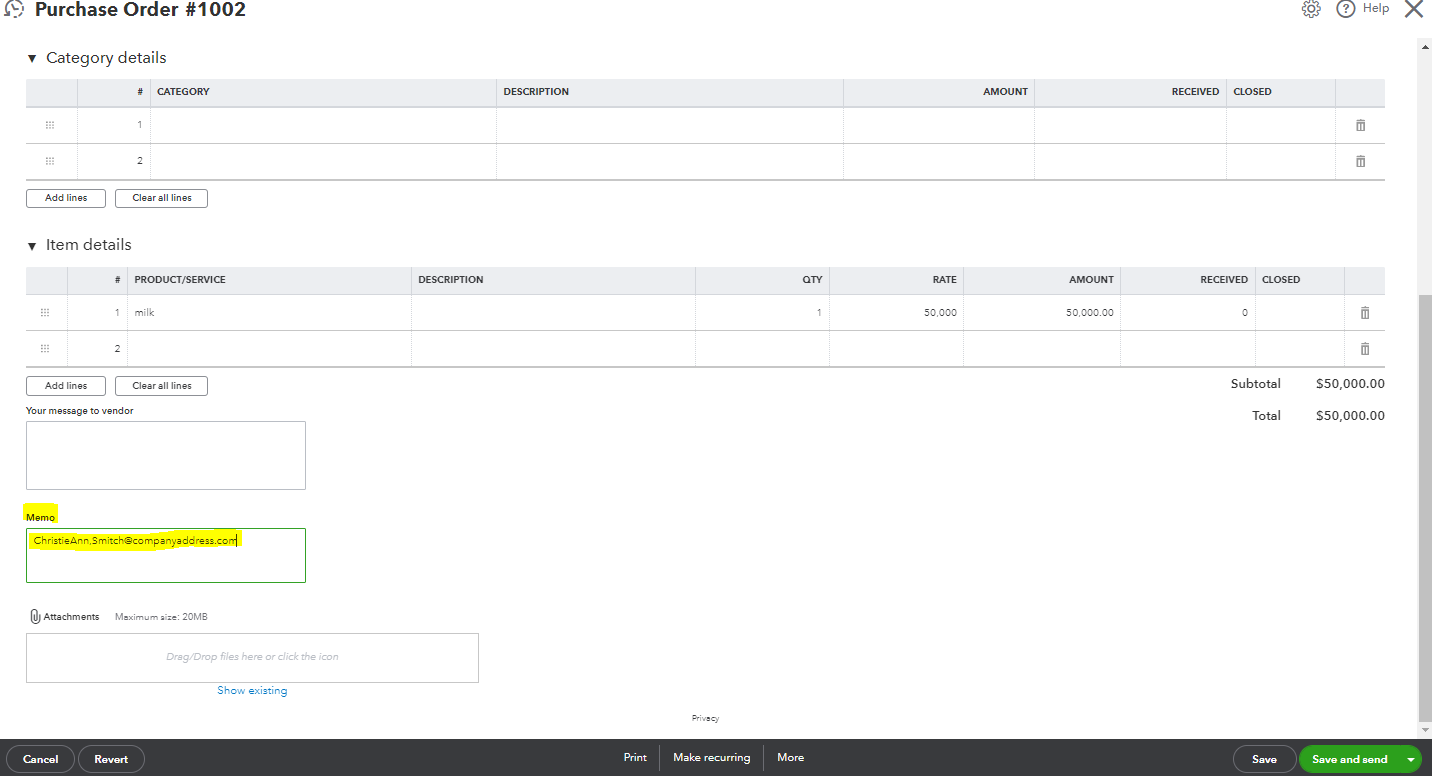
For now, I recommend adding your company's email address to the Memo field when sending the purchased order. Your customer can now see your email address and send you an important message directly. I've attached a screenshot below for visual reference.
On the other hand, you can also download the transaction and send it manually to your customer using your company email address.
Here's how:
- On the left panel, click the Expenses tab.
- Choose Expenses and look for the purchase order where you want to send it.
- Click the transaction to expand the view.
- Select Print in the bottom portion.
- Hover your mouse in the upper portion of the page and click the download icon.
After that, you can now send the purchase order to the right person using your company email address.
Lastly, you may refer to this article to see steps on how you can update the status of a purchase order and add it to a bill: Create and send purchase orders in QuickBooks Online.
You can always reply if you have any QuickBooks-related concerns like managing your purchase order. I'm always here to guide and assist you whenever you need help, rdoboss63. Have a good one!
