Turn on suggestions
Auto-suggest helps you quickly narrow down your search results by suggesting possible matches as you type.
Showing results for
CYBER MONDAY SALE 70% OFF QuickBooks for 3 months* Ends 12/5
Buy nowfor years i have gone to a customers location, added a new customer, and clicked the gps button and it would automatically enter in the gps address. after this last update i no longer have the circle gps button by the address when adding a new customer. anyone know what needs to be done to get this turned back on?

Hi jlrvv.
I understand how this change has made things more challenging for you, especially since the GPS button was an important part of your workflow.
With the new update, the functionality for retrieving the GPS address has changed. Instead of the circular GPS button, this feature is now integrated into the Preview Address option.
Here's what you can do:
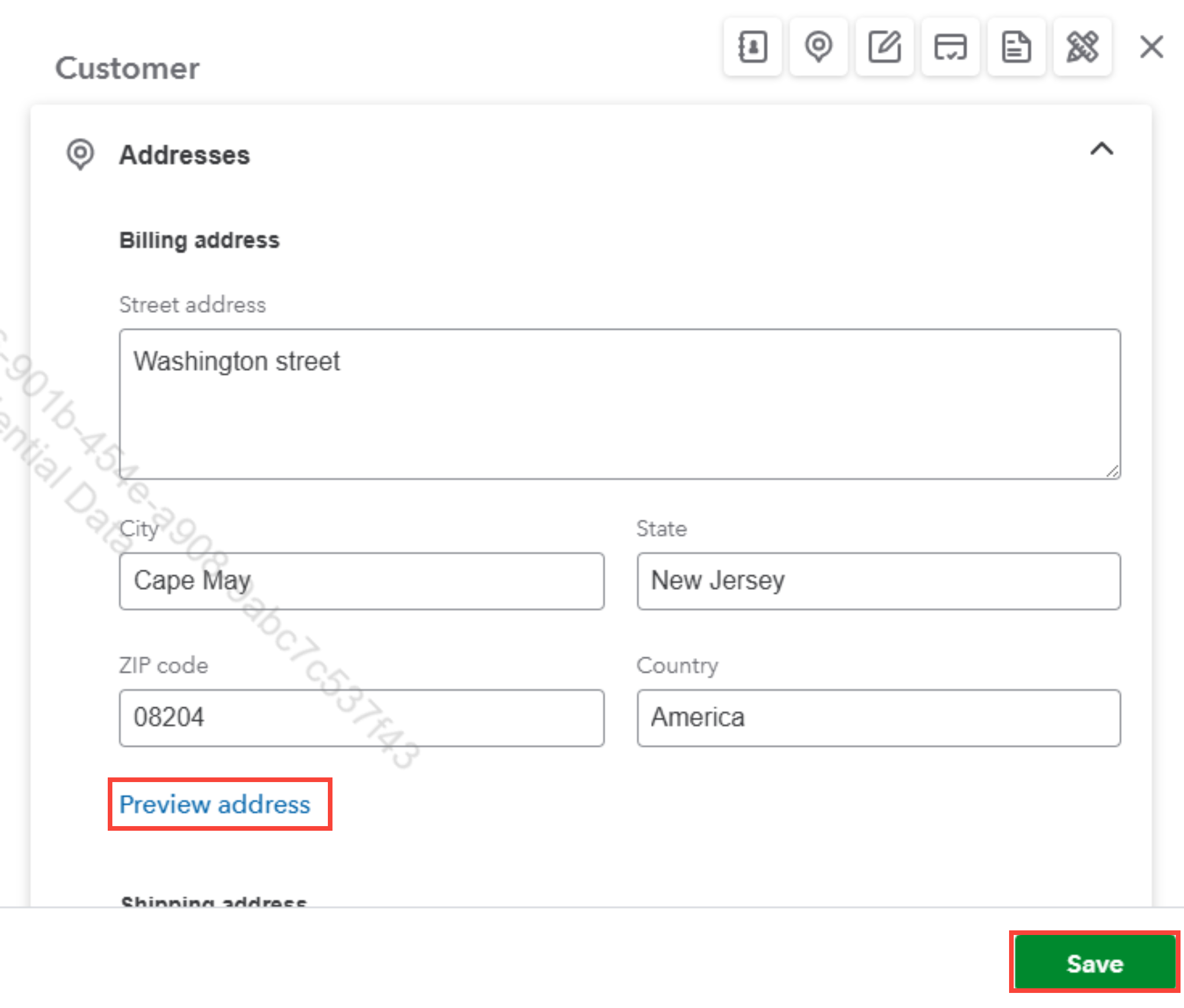
If you need further clarification or assistance, feel free to let us know.
there is no preview button in the android app. The whole point is not to have to type in the address on a phone. Updates are suppose to make your product better and require less user input. Typing in a full address on a phone is a big waste of my time and my customers time, instead of just hitting the gps button.
Why is the map button there, in my original picture, it does nothing.
Thank you for providing more details, @jlrrv.
In the latest update, the Preview button has been relocated and can now be found next to the Billing Address field in the Customers tab.
We understand that adjustments to updates can take some time, and we truly appreciate your patience as you navigate the new layout.
Here’s where you can find it in the updated layout: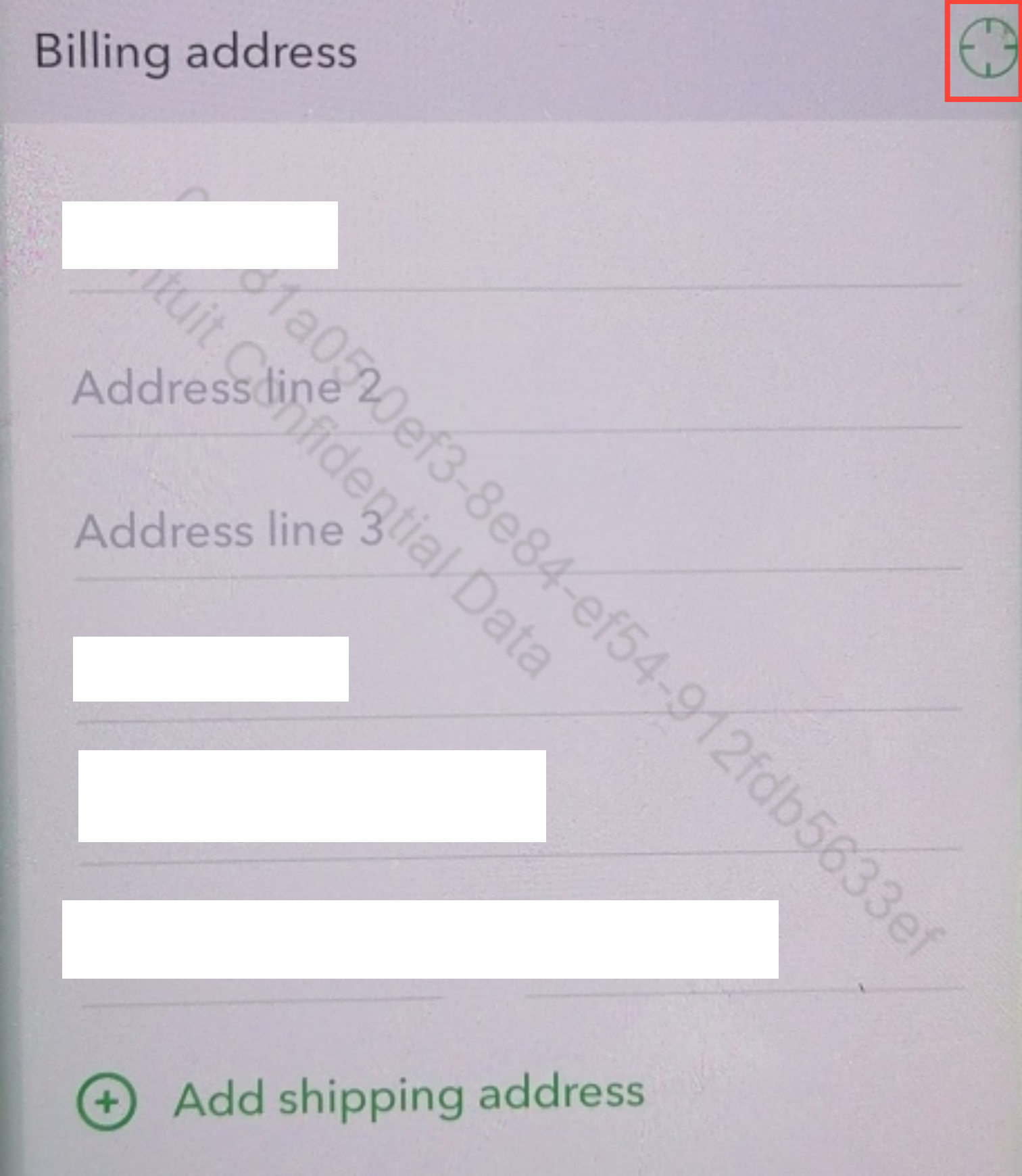
Feel free to click the Reply button, if you need any additional assistance with the new update.


You have clicked a link to a site outside of the QuickBooks or ProFile Communities. By clicking "Continue", you will leave the community and be taken to that site instead.
For more information visit our Security Center or to report suspicious websites you can contact us here


