Turn on suggestions
Auto-suggest helps you quickly narrow down your search results by suggesting possible matches as you type.
Showing results for
CYBER MONDAY SALE 70% OFF QuickBooks for 3 months* Ends 12/5
Buy nowHi there, @Jmp17.
You don't need to delete those deposits but instead, you can apply them to an invoice. This way, all of the negative amounts from your deposits will be removed from the A/R Aging report. Let me guide how.
The reason why the deposits still sit as a negative amount on the report is that you create an invoice then received the payment at the same time. The best way to remove them is to apply the deposits as a credit to an invoice. Here's how:
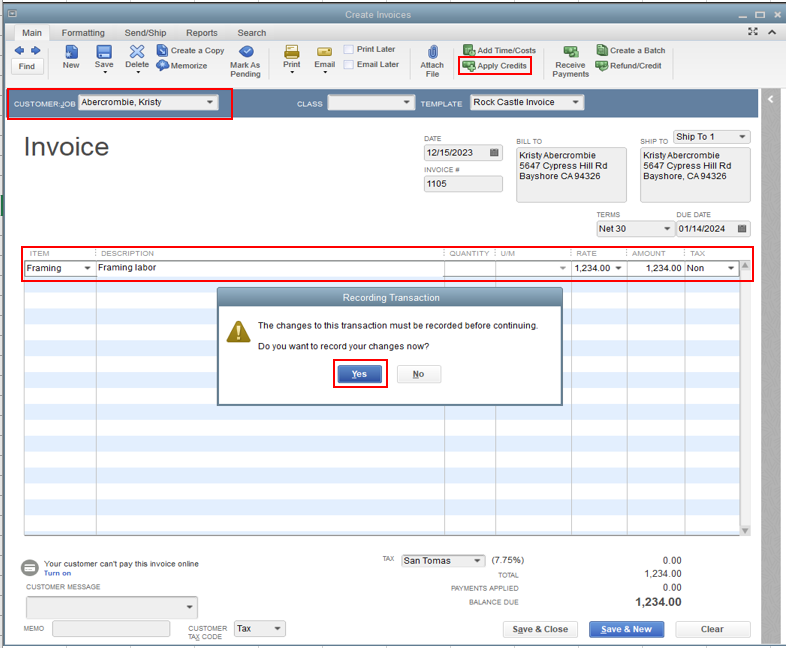

Once done, you can now review the A/R Aging report to double-check if the deposit with a negative amount already removed.
I'm adding this article for your future reference: AR Balance on the Chart of Accounts does not Match AR balance on Reports.
Feel free to visit us again if you have any other questions. The Community team is always here to help.

