Turn on suggestions
Auto-suggest helps you quickly narrow down your search results by suggesting possible matches as you type.
Showing results for
Get 50% OFF QuickBooks for 3 months*
Buy nowI understand the importance of integrating your Cash App transactions with QuickBooks Online (QBO), JG86. I'm here to help you manage and explore solutions for importing your transactions effectively.
First off, could you specify the exact error message you receive when uploading your CSV file? Knowing this will help me tailor my assistance more accurately.
When uploading transactions to QuickBooks, ensure the Date, Description, and Amount columns on the CSV match the columns and order in QuickBooks. Also, check that your CSV file does not exceed 1000 rows.
Here are the steps you can follow in uploading your CSV file to QuickBooks:
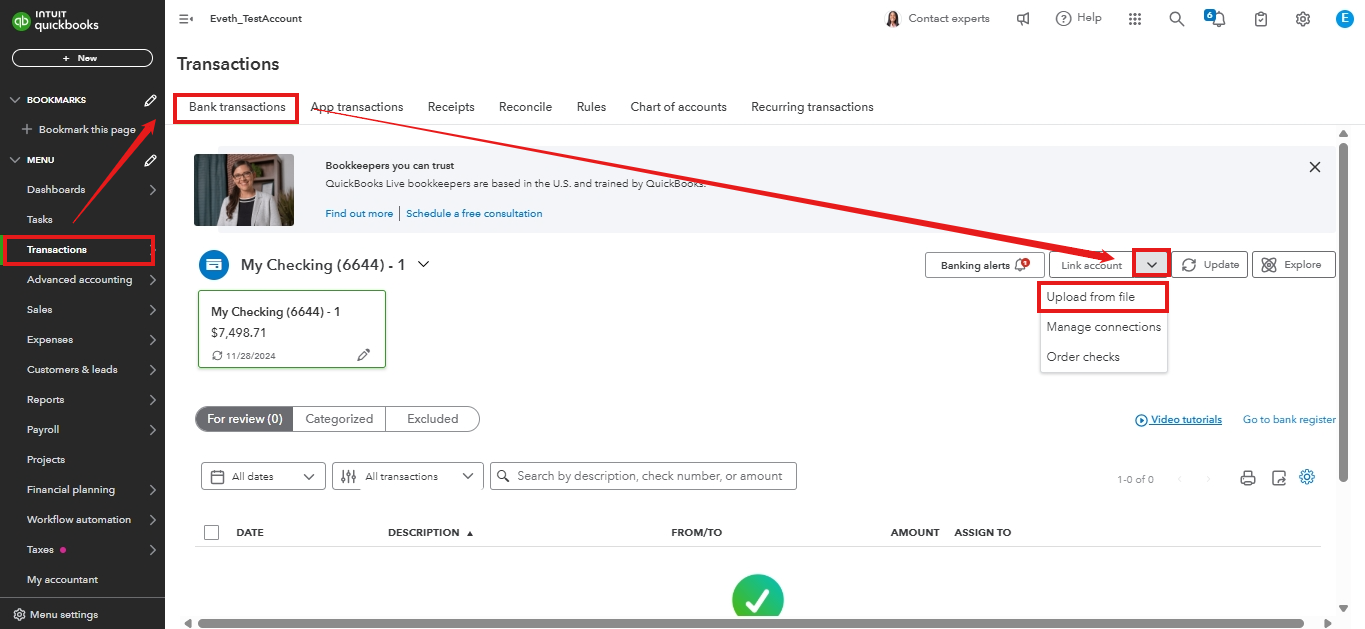
If you're still facing issues, this article on fixing upload errors might be handy: Fix errors when you upload transactions.
Furthermore, for maintaining accurate bank data, you might find these articles helpful, which will guide you when reviewing and reconciling your accounts in QuickBooks:
Please know I'm always available here when you need further assistance uploading your CSV file into QuickBooks. I hope you have a beautiful day.

