Turn on suggestions
Auto-suggest helps you quickly narrow down your search results by suggesting possible matches as you type.
Showing results for
Get 50% OFF QuickBooks for 3 months*
Buy nowI appreciate all the things you've done so far, Beryl. You have already invested significant time migrating your file to the new computer. Let's ensure you can install your QuickBooks on the latest one.
If you're using Windows 11, the best way to transfer your QuickBooks data or files is to install them manually on the other computer.
It's a good start that you have your license and product key. Now, we can proceed with downloading the installer by following these steps:
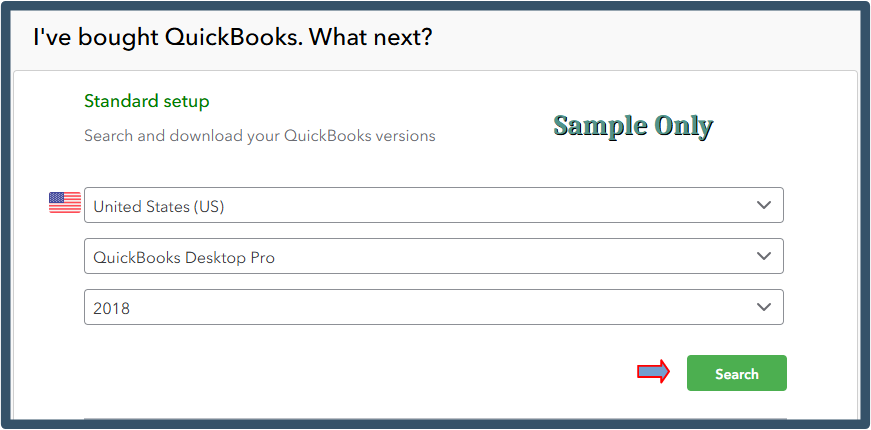
Please know that to install your product on a different computer, you will need to register it first. Here's how you can do that:
If you're using Windows 10, please check pending system updates before using the migration tool. This process helps prevent compatibility issues.
Moreover, check out this reference for the limitations and reminders regarding transferring data between different locations, systems, or computers: Company file compatibility with QuickBooks Desktop.
For future reference, I'm adding these helpful resources for managing your QuickBooks Desktop and company files:
Following the steps above, you can set up QuickBooks on your new computer. We're still here to assist if you encounter any challenges with the process.

