

- Mark as New
- Bookmark
- Subscribe
- Permalink
- Report Inappropriate Content
Other questions
I know you want to keep your financial transactions well-organized. PWendt. The deposit will show in the Pay Bills screen if you've chosen Accounts Payable in the From Account column.
When you create the deposit for the vendor check, select Accounts Payable. This process ensures the refund is accounted for against the original bill or expense.
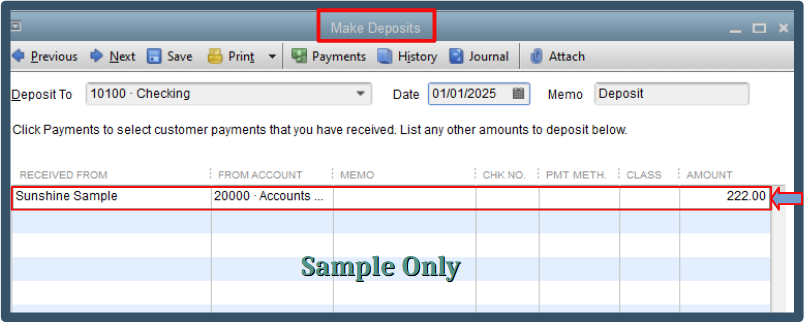
Once you've chosen the appropriate account, the deposit will be visible in the Pay Bills window. Please see the attached screenshot for visual reference.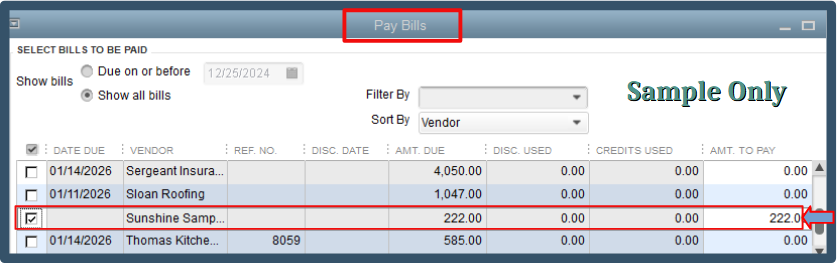
The deposit will also appear in vendor transactions and reports, such as the Transactions List by Vendor report. However, it will be displayed as a Bill Pmt-Check.
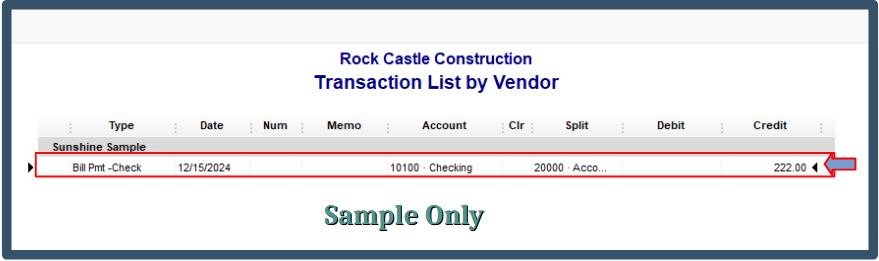
If you need further guidance in recording vendor refunds, here's an article you can visit: Record a vendor refund in QuickBooks Desktop.
For future reference, here are some articles for more insights about handling vendor credits in QuickBooks:
- Remove or unapply a credit from an invoice or bill
- Transfer and apply credit from one vendor to another in QuickBooks Desktop
The information above should help clear up any confusion about the process of recording refunds and the visibility of deposits in QuickBooks. If you have any further questions or require additional support, we're still here to help.
