
- Mark as New
- Bookmark
- Subscribe
- Permalink
- Report Inappropriate Content
How do you change the reference number on pay bills?


- Mark as New
- Bookmark
- Subscribe
- Permalink
- Report Inappropriate Content
Other questions
Hello there, @jean6.
Let's open the bill so you can change the reference number on the Pay Bills page in QuickBooks Online (QBO) and manage your expense transactions accordingly.
The Ref No. in the Pay Bills page is the Bill no. info when you create the bill. Then, when you select the Print later option on the said page, the Starting check no. will show as To print.
Whenever you're ready to change the reference number of your bill, follow these steps:
- Go to the +New button.
- Select Pay bills.
- On the Pay Bills page, select the bill that you want to change the reference number.

- Once the bill is open, change the reference number in the Bill no. field.

- Click Save or Save and close.
Once you're done, go back to the Pay Bills page to see the updated reference number and pay your bills. For the complete guide to tracking bills and recording payments in QBO, you can refer to this article: Enter and manage bills and bill payments in QuickBooks Online.
Also, you may want to check out this article as your reference to guide you in paying bills online for a faster transaction in QBO: Pay bills in Online Bill Pay.
If there's anything else you need or questions about managing bills and expense transactions in QBO, I'm always ready to help. Take care, and have a great day, @jean6.
- Mark as New
- Bookmark
- Subscribe
- Permalink
- Report Inappropriate Content
Other questions
Thank you for your reply
It wasn't as easy as that but I have now solved the problem with the help of Wensley Earl and have noted how to clear the To print should it happen again in the future.


- Mark as New
- Bookmark
- Subscribe
- Permalink
- Report Inappropriate Content
Other questions
Good morning, @jean6.
Thanks for reaching back out and letting us know what happened in the end.
I'm so glad you were able to get this resolved.
I'm only a post away if you need me. We're always here to lend a helping hand. Bye for now!

- Mark as New
- Bookmark
- Subscribe
- Permalink
- Report Inappropriate Content
Other questions
Hello,
Can you help on this issue. I am also facing this issue of Ref Number.
Vishal M

- Mark as New
- Bookmark
- Subscribe
- Permalink
- Report Inappropriate Content
Other questions
Hi there, Vishal. If your reference number appears greyed out, it's probably because the Print Later option has been selected. To resolve this, let's simply uncheck the Print Later option, which will remove the To Print status from your reference number and ensure it updates correctly.
Here's how:
- Go to + New.
- Under the Vendors column, click on Pay Bills.
- Fill in the Payment Account and Payment Date.
- Then tick the box for the Print Later option.
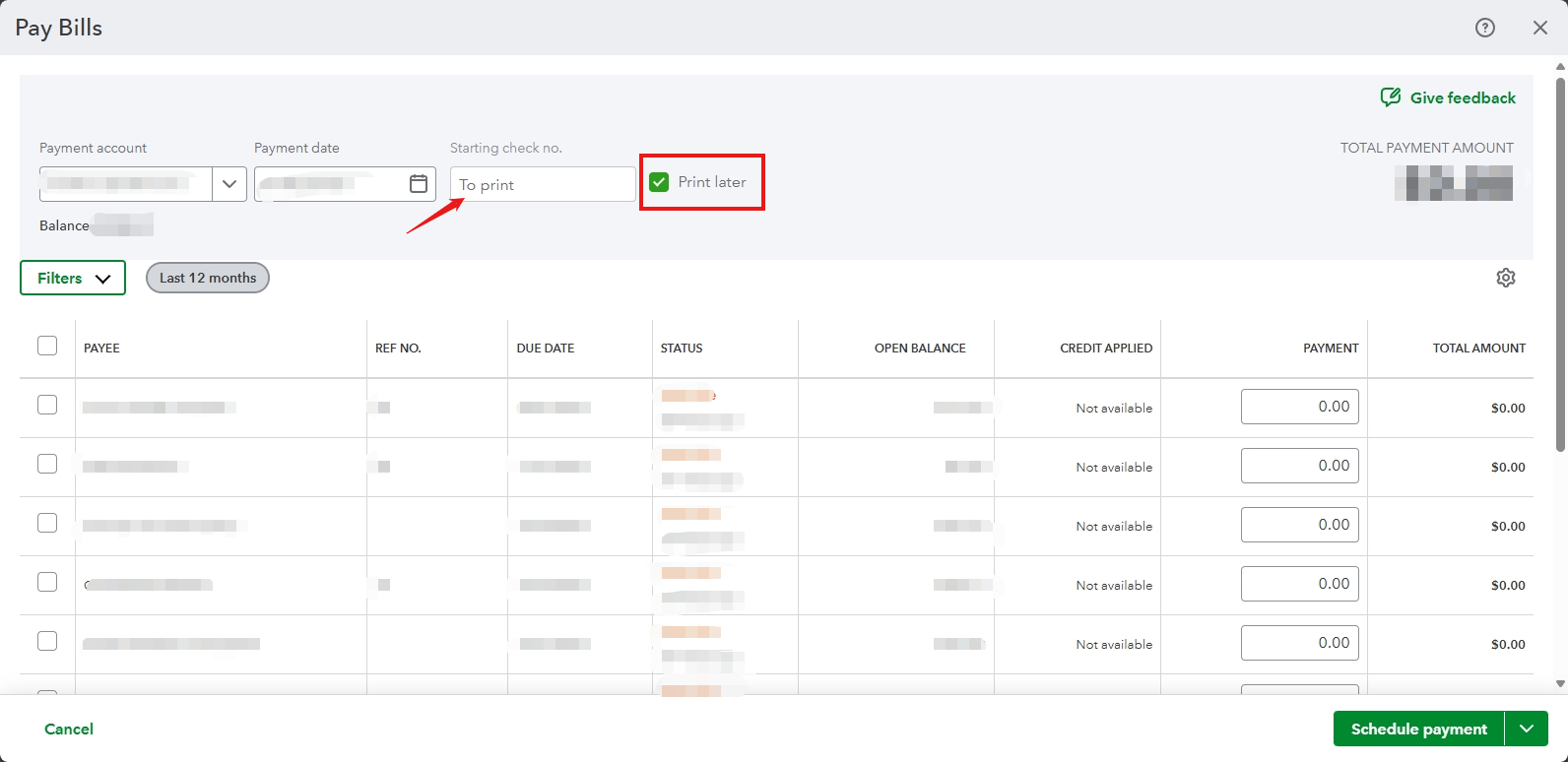
If you need to to modify your reference number for your vendors, you can follow the steps provided by my colleague, @Rea_M.
Once you've successfully updated the reference number, you can proceed to pay your bills.
Feel free to reach out to us if you have any further concerns. We're here to help you!
