
Turn on suggestions
Auto-suggest helps you quickly narrow down your search results by suggesting possible matches as you type.
Showing results for
Hi there, info2318.
You can export overdue customer data to Excel in two ways under the new QuickBooks Online interface: Customer Hub if you're looking in the overdue invoices of the customer or A/R Ageing Detail Report if you want a more detailed report.
These are the steps:
1. In QuickBooks Online (QBO), go to the left menu and select All Apps, then choose Customer Hub.
2. Under Customer Hub, click Customers, then select Overdue Invoices.
3. Next to the Print icon, click the Export icon to download the data in Excel format.
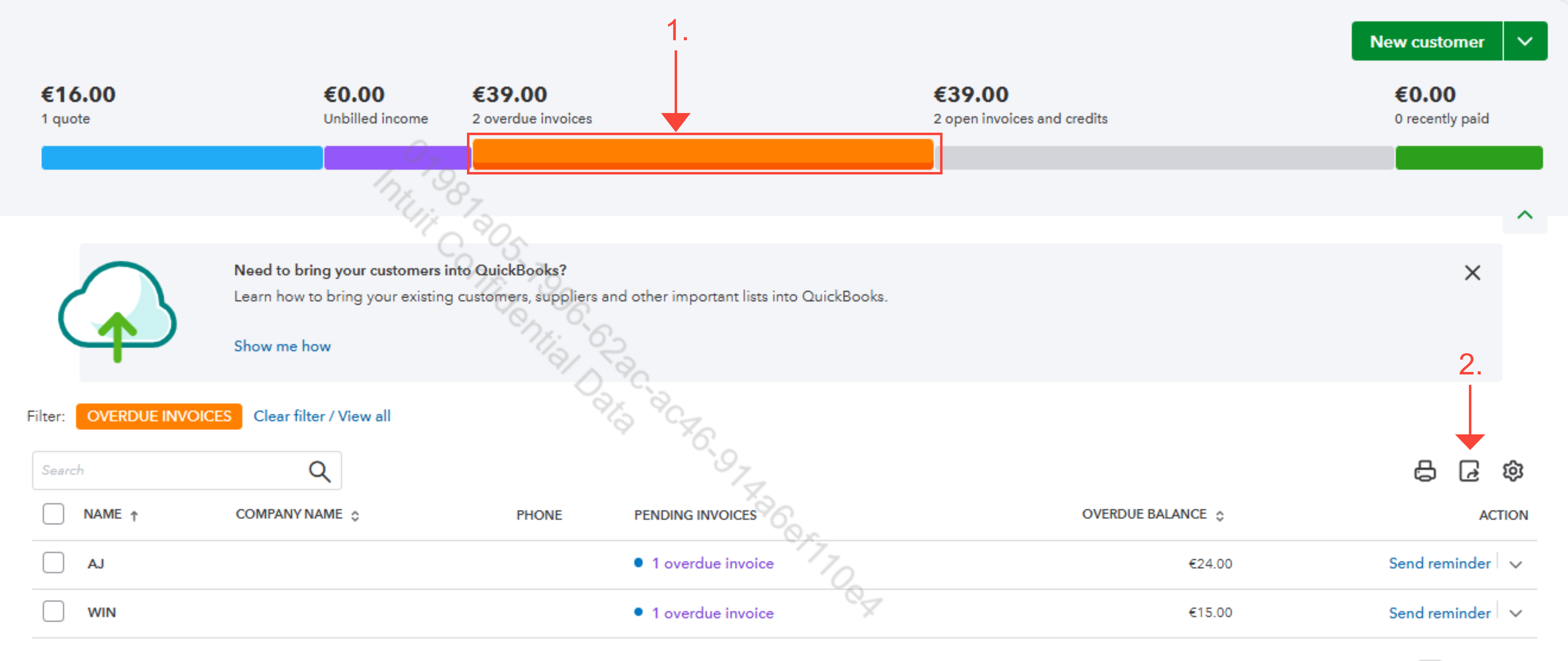
Alternatively, if you want the Accounts receivable (A/R) ageing detail.
Here's how:
1. In your QBO dashboard, go to the left menu and click Reports.
2. Under Standard Reports, search for Accounts Receivable (A/R) Ageing Detail and select it.
3. In that tab you can see the overdue invoices of the customer and you can also click columns if you have any customer data to add in the report.
4. Next to the Print icon, select the Export icon and choose Export to Excel.
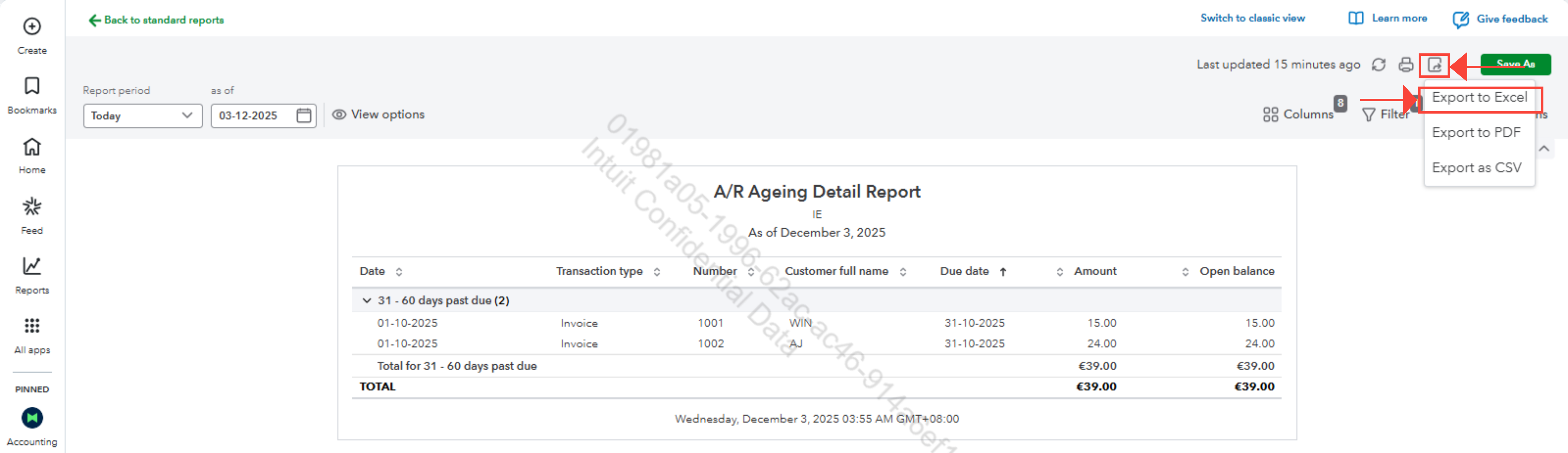
If you have any questions about this, feel free to comment below.
You have clicked a link to a site outside of the QuickBooks or ProFile Communities. By clicking "Continue", you will leave the community and be taken to that site instead.
For more information visit our Security Center or to report suspicious websites you can contact us here


