Hello there, Denitsa. I'll share some insights on how to ensure that your uploaded CSV file is formatted correctly to avoid errors.
If your uploaded CSV for missing transactions is causing them to appear as deposits instead of payments, this is usually caused by formatting or mapping issues. Here's how you can correct this:
First, you'll have to review the Amount column. In your CSV file, let's ensure that payments (expenses) are entered as negative values, while deposits (income) should be entered as positive values.
If payments are listed as positive amounts, QuickBooks will mistakenly categorise them as deposits during import. To avoid this, you'll have to update the values in your CSV so that the correct format will reflect before re-uploading them.
Next, you'll also want to check whether your CSV column headers align with QuickBooks' requirements. For the import to work properly, your headers should include:
- Date
- Description
- Credit
- Debit
It's also worth noting to pay close attention to the Amount column and ensure that payments and deposits are clearly differentiated based on their formatting.
Once you're done with the formatting, you'll have to make sure you tick whether to keep the original value during the verification of your imported transactions. You can check the picture below for reference:
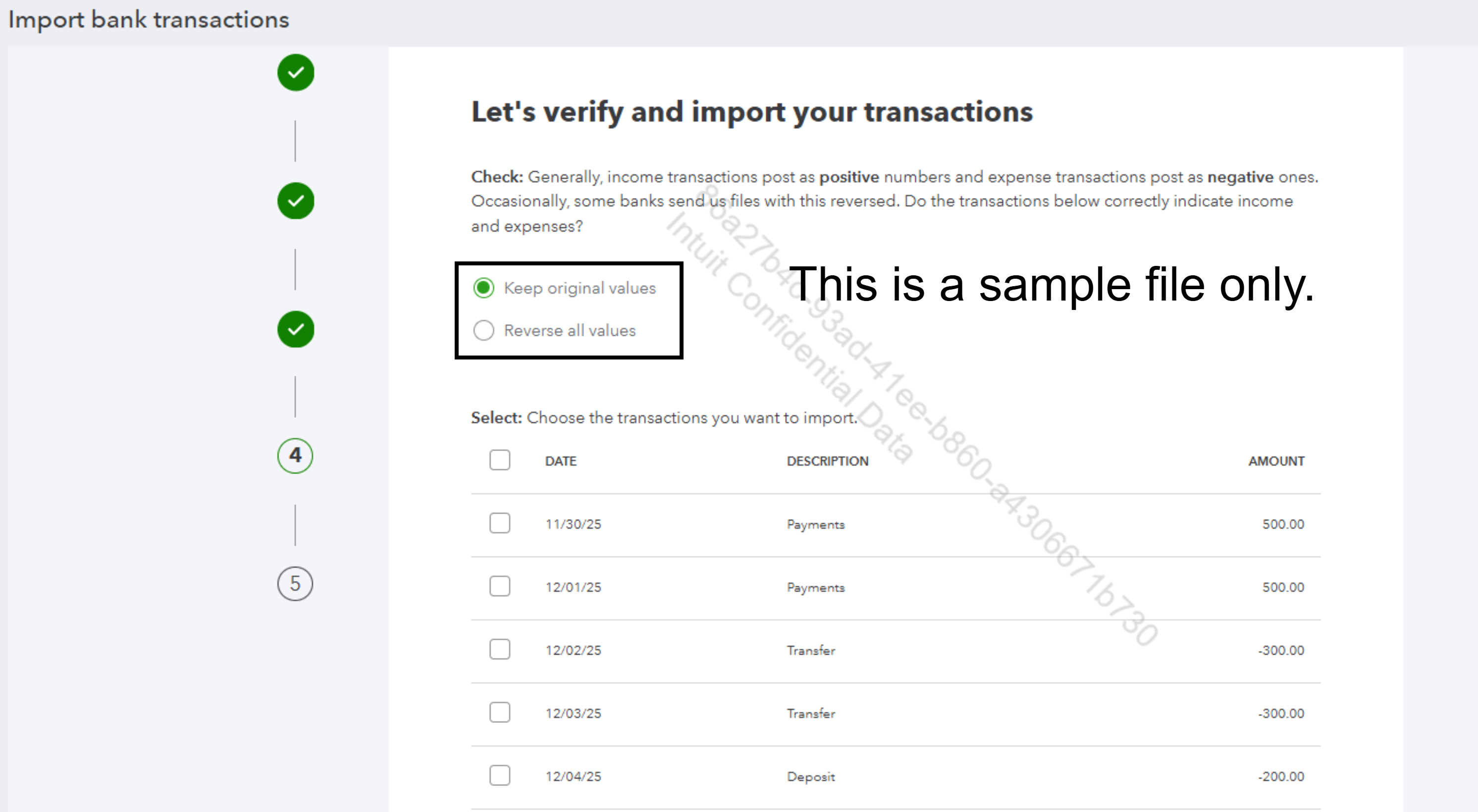
Please note that some banks often file in varying or reversed formats, which can lead to compatibility issues. To avoid errors, let's carefully review and adjust these files before formatting and importing.
You can also refer to this article for further information: Prepare your CSV file for bank upload.
From there, your imported missing transactions should display and be mapped correctly as expected.
Feel free to reply to this post if you need further assistance.


